0:00
hi everyone my name is Barbara welcome
0:01
back to my YouTube channel and welcome
0:03
if it's your first time here today I'm
0:05
going to show you how to randomly assign
0:07
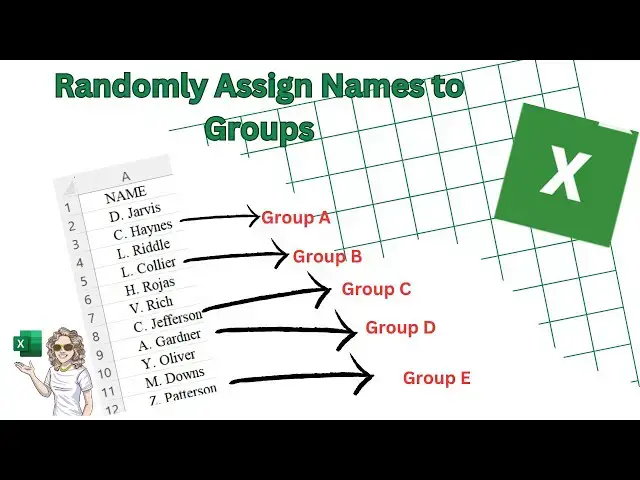
names to groups so this has a ton of
0:10
applications or uses you could assign
0:12
players to teams uh members to groups
0:15
and even create groups for uh allocation
0:19
of people to wedding tables so this
0:21
formula I'm going to show you uh will
0:23
randomly assign a given number of people
0:25
to each of the buckets so that's groups
0:27
or tables or whatever you want to call
0:29
them with a click of the mouse and I
0:31
think this is really useful once it's
0:32
set up to reuse again and again what I'm
0:35
going to do is work through two examples
0:36
one is going to randomly assign names to
0:39
groups like sports groups and the other
0:42
is I'm going to show you how to randomly
0:44
assign 100 people to 10 tables of 10 so
0:49
let's get started so we're going to use
0:51
a few function this in this video but I
0:53
believe it's really straightforward and
0:54
should make sense so let's Jump Right In
0:57
and get those people assigned to their
0:59
groups so I've got a list of 12 people
1:01
here our player names and I want to
1:03
assign them to so I want to assign them
1:05
into groups of three so that means I've
1:08
got four teams available and my teams
1:10
are a b c and d That's a straightforward
1:14
enough scenario so the first part of the
1:16
formula we're going going to use the
1:18
choose function this is a great little
1:20
logical function in Excel and choose
1:23
returns a value from a list where you
1:25
give it a position or index within the
1:28
list that'll become a a bit clearer
1:30
later on what we also want to do is
1:32
randomly choose between our groups of 1
1:35
2 3 or four so what you would probably
1:37
normally do is you'd say okay well
1:40
choose uh random between or Rand between
1:45
we've got one and we have four and then
1:48
close the brackets so that is our index
1:50
number is the random number between one
1:52
and four and those numbers are going to
2:18
bracket that looks okay so far let's
2:21
drag that formula down and what we can
2:23
see is if you remember we had three we
2:26
have four groups and we want three
2:30
so this is given our allocation of teams
2:32
but it's not taken into account that we
2:34
want three people equally amongst the
2:36
four teams so this is where we we
2:39
replace the Rand between with the Rand
2:42
function let's just create some
2:48
numbers and we do that using the Rand
2:52
function it's a bit like the today
2:54
function you just there's no arguments
2:56
for it it's just Rand and there if we
2:58
can just drag that to the bottom this
3:00
gives us random numbers that we can use
3:04
indexing so let's just start again again
3:07
we're going to use the choose function
3:10
because we need to choose that index
3:12
number then we're going to bring in the
3:18
function and we're going to use this
3:21
number and the reference will be all of
3:24
these cuz these are our unique random
3:26
numbers let's make that absolute cuz
3:29
we're going to be dragging the formula
3:31
down now I want to divide this number by
3:33
three because we're looking groups of
3:36
four groups and three in each group
3:38
we're going to add in another function
3:39
here as well so what I want to do is uh
3:42
we end enter the Roundup function as
3:45
well to avoid any errors with the
3:46
division as we're dealing with some
3:48
decimals in the Rand function and I'm
3:52
to zero digit which should be fine so
3:57
this now gives us our index number the
3:59
choose function and then again I can
4:02
finish off with our values of our
4:09
groups let's drag that
4:11
down and we can see that three in a
4:16
three in B three in C and three in D
4:20
which is exactly what we wanted are four
4:24
groups with three people in each here's
4:26
another example where we can use this
4:29
it's but just on a slightly larger
4:33
scale so we know we need to enter the
4:43
randomizer is enter the Rand
4:47
function to generate our random numbers
4:51
and that's going to go right down
4:53
to 100 I've got 100 guests for this
5:00
let's start again with the
5:05
function and we're going to straight
5:12
rank and our number will be this and
5:18
down to our last number let's mix that
5:30
we're dividing by 10 and we're rounding
5:33
up to the number of digits is zero now
5:38
we have our index number set what we can
5:40
do is we just need to type in our
5:57
tables so we've got our index number so
6:00
I have my first entry Kitty going on
6:04
table eight let's just double click and
6:08
check a few of them so let's count
6:13
if the range is equal to
6:20
10 we've got 10 on table
6:22
one and 10 all the way so so excels
6:27
correctly assign 10 people to 10 using
6:30
our random numbers so that's how to
6:33
randomly assign names to groups teams
6:36
tables conference tape I hope you
6:39
enjoyed the video I hope you found it
6:40
useful I leave a link to the work boot
6:43
that I've used in the description box
6:45
below feel free to use it and adjust it
6:49
for your own needs if you did enjoy the
6:51
video give it a thumbs up it really does
6:53
help the channel consider subscribing so
6:54
you'll be notified when I upload another
6:57
XL video thanks for watching